How to Use Structured Data on Shopify: Schema Markup Guide
Implement structured data on your Shopify store for rich snippets in Google. Complete guide to Product, FAQ, Breadcrumb, and other schema types.
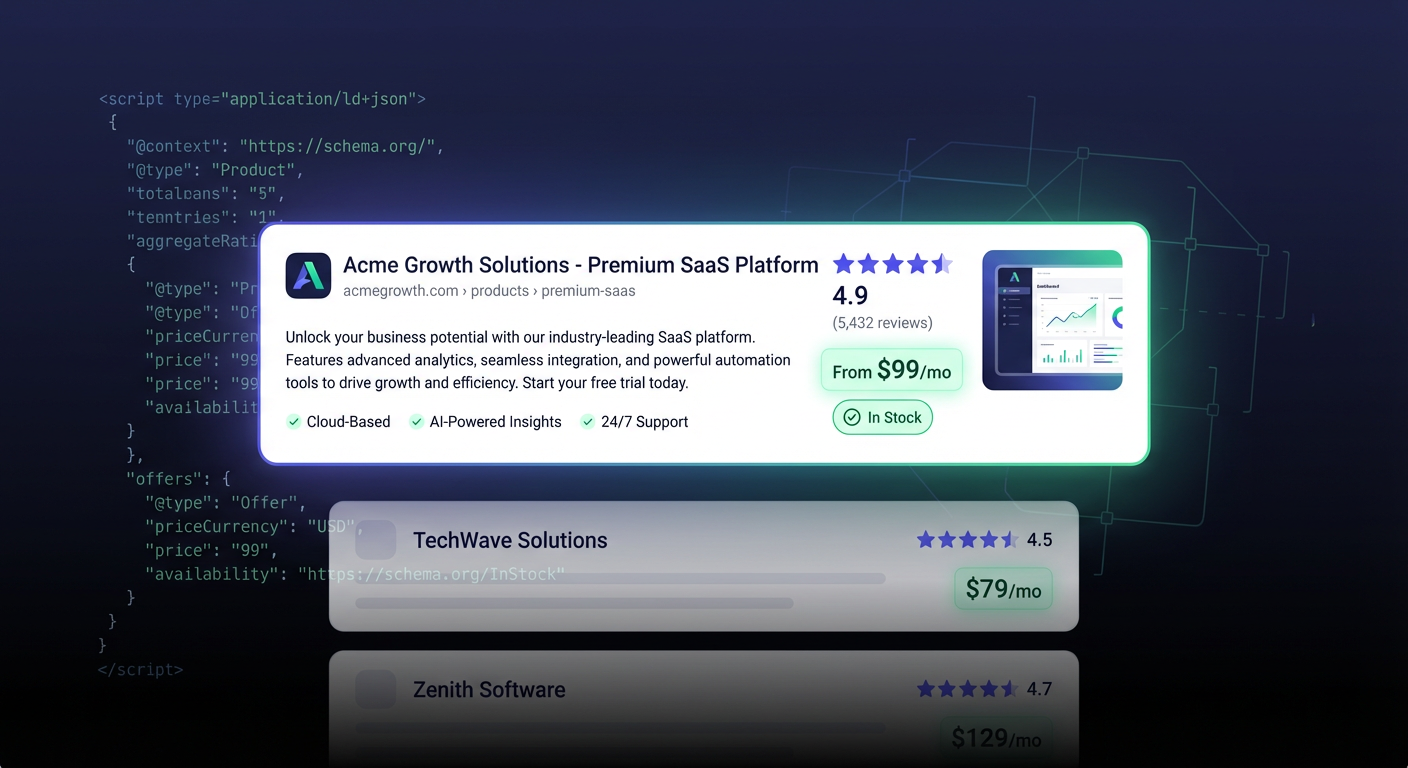
Structured data is the secret weapon behind those eye-catching search results with star ratings, prices, and availability. While your competitors show plain blue links, you could be displaying rich snippets that dramatically increase click-through rates.
This guide shows you exactly how to implement structured data on Shopify to stand out in search results.
What Is Structured Data?
Structured data is a standardized format for providing information about a page. It uses a vocabulary called Schema.org to describe your content in a way search engines understand.
Plain HTML:
<h1>Nike Air Max 90</h1>
<p>$129.99</p>
<p>In Stock</p>
With Structured Data:
{
  "@type": "Product",
  "name": "Nike Air Max 90",
  "offers": {
    "price": "129.99",
    "availability": "InStock"
  }
}
Search engines use structured data to create rich results:
- Star ratings below product listings
- Price and availability information
- FAQ accordions in search results
- Breadcrumb navigation paths
- Review snippets
Why Structured Data Matters for E-commerce
Higher Click-Through Rates
Rich snippets stand out visually. Studies show they can increase CTR by 20-30% compared to plain results.
More Qualified Traffic
When searchers see price, ratings, and availability before clicking, they’re more qualified leads - they know what to expect.
Voice Search Optimization
Voice assistants like Google Assistant use structured data to answer questions. “How much are Nike Air Max 90s?” pulls from your Product schema.
Competitive Advantage
Most Shopify stores don’t implement structured data beyond what their theme provides. Proper implementation gives you an edge.
Types of Structured Data for Shopify
1. Product Schema
The most important schema for e-commerce. Displays:
- Product name
- Price
- Availability
- Rating/reviews
- Image
JSON-LD Example:
{
  "@context": "https://schema.org",
  "@type": "Product",
  "name": "Nike Air Max 90",
  "image": "https://yourstore.com/images/nike-air-max-90.jpg",
  "description": "Classic Nike Air Max 90 running shoes",
  "brand": {
    "@type": "Brand",
    "name": "Nike"
  },
  "offers": {
    "@type": "Offer",
    "price": "129.99",
    "priceCurrency": "USD",
    "availability": "https://schema.org/InStock",
    "url": "https://yourstore.com/products/nike-air-max-90"
  },
  "aggregateRating": {
    "@type": "AggregateRating",
    "ratingValue": "4.7",
    "reviewCount": "89"
  }
}
2. BreadcrumbList Schema
Shows navigation path in search results:
yourstore.com > Men's Shoes > Running ShoesJSON-LD Example:
{
  "@context": "https://schema.org",
  "@type": "BreadcrumbList",
  "itemListElement": [
    {
      "@type": "ListItem",
      "position": 1,
      "name": "Home",
      "item": "https://yourstore.com"
    },
    {
      "@type": "ListItem",
      "position": 2,
      "name": "Men's Shoes",
      "item": "https://yourstore.com/collections/mens-shoes"
    },
    {
      "@type": "ListItem",
      "position": 3,
      "name": "Running Shoes",
      "item": "https://yourstore.com/collections/mens-running-shoes"
    }
  ]
}
3. FAQPage Schema
Creates expandable FAQ accordions in search results.
JSON-LD Example:
{
  "@context": "https://schema.org",
  "@type": "FAQPage",
  "mainEntity": [
    {
      "@type": "Question",
      "name": "What is your return policy?",
      "acceptedAnswer": {
        "@type": "Answer",
        "text": "We offer 30-day free returns on all orders."
      }
    },
    {
      "@type": "Question",
      "name": "Do you ship internationally?",
      "acceptedAnswer": {
        "@type": "Answer",
        "text": "Yes, we ship to over 50 countries worldwide."
      }
    }
  ]
}
4. Organization Schema
Displays brand information, logo, and social links.
JSON-LD Example:
{
  "@context": "https://schema.org",
  "@type": "Organization",
  "name": "YourBrand",
  "url": "https://yourstore.com",
  "logo": "https://yourstore.com/logo.png",
  "sameAs": [
    "https://facebook.com/yourbrand",
    "https://instagram.com/yourbrand",
    "https://twitter.com/yourbrand"
  ],
  "contactPoint": {
    "@type": "ContactPoint",
    "telephone": "+1-800-123-4567",
    "contactType": "customer service"
  }
}
5. Article/BlogPosting Schema
For blog posts and content pages.
JSON-LD Example:
{
  "@context": "https://schema.org",
  "@type": "Article",
  "headline": "Complete Guide to Running Shoe Selection",
  "image": "https://yourstore.com/blog/running-guide.jpg",
  "author": {
    "@type": "Person",
    "name": "Jane Smith"
  },
  "publisher": {
    "@type": "Organization",
    "name": "YourBrand",
    "logo": "https://yourstore.com/logo.png"
  },
  "datePublished": "2025-01-15",
  "dateModified": "2025-01-20"
}
6. LocalBusiness Schema
For stores with physical locations.
JSON-LD Example:
{
  "@context": "https://schema.org",
  "@type": "LocalBusiness",
  "name": "YourBrand Flagship Store",
  "address": {
    "@type": "PostalAddress",
    "streetAddress": "123 Main Street",
    "addressLocality": "New York",
    "addressRegion": "NY",
    "postalCode": "10001",
    "addressCountry": "US"
  },
  "telephone": "+1-212-555-1234",
  "openingHours": "Mo-Sa 10:00-21:00"
}
7. Review Schema
For individual product reviews.
JSON-LD Example:
{
  "@context": "https://schema.org",
  "@type": "Review",
  "itemReviewed": {
    "@type": "Product",
    "name": "Nike Air Max 90"
  },
  "reviewRating": {
    "@type": "Rating",
    "ratingValue": "5",
    "bestRating": "5"
  },
  "author": {
    "@type": "Person",
    "name": "John D."
  },
  "reviewBody": "Best running shoes I've ever owned!"
}
Implementing Structured Data on Shopify
Method 1: Theme Code (Recommended)
Most Shopify themes include basic Product schema. To add or customize:
- Go to Online Store → Themes
- Click Actions → Edit code
- Find
product.liquidormain-product.liquid - Add JSON-LD script in the template
Example placement:
{% if product %}
<script type="application/ld+json">
{
  "@context": "https://schema.org",
  "@type": "Product",
  "name": {{ product.title | json }},
  "image": {{ product.featured_image | image_url: width: 1200 | json }},
  "description": {{ product.description | strip_html | json }},
  "brand": {
    "@type": "Brand",
    "name": {{ product.vendor | json }}
  },
  "offers": {
    "@type": "Offer",
    "price": {{ product.price | money_without_currency | json }},
    "priceCurrency": {{ shop.currency | json }},
    "availability": "{% if product.available %}https://schema.org/InStock{% else %}https://schema.org/OutOfStock{% endif %}",
    "url": {{ request.origin | append: product.url | json }}
  }
  {% if product.metafields.reviews.rating.value %}
  ,"aggregateRating": {
    "@type": "AggregateRating",
    "ratingValue": {{ product.metafields.reviews.rating.value | json }},
    "reviewCount": {{ product.metafields.reviews.rating_count.value | json }}
  }
  {% endif %}
}
</script>
{% endif %}
Method 2: Shopify Apps
Several apps add structured data automatically:
- JSON-LD for SEO: Comprehensive schema implementation
- Schema Plus for SEO: Product and collection schema
- Smart SEO: Includes structured data features
Pros:
- No coding required
- Automatic updates
- Often includes validation
Cons:
- Monthly cost
- Less customization control
- Potential for conflicts with theme code
Method 3: Google Tag Manager
For advanced implementations:
- Set up Google Tag Manager on your store
- Create a Custom HTML tag
- Add JSON-LD script
- Use GTM variables to pull product data
- Trigger on relevant page types
Validating Structured Data
Always validate your implementation:
Google Rich Results Test
- Go to Google Rich Results Test
- Enter your page URL
- Review detected structured data
- Fix any errors or warnings
Schema Markup Validator
- Go to Schema.org Validator
- Paste your JSON-LD code
- Check for syntax errors
Google Search Console
- Go to Enhancements section
- Review structured data reports
- Check for errors across your site
Common Structured Data Mistakes
Mistake 1: Missing Required Fields
Each schema type has required fields. Missing them prevents rich results.
Product schema required:
- name
- image
- offers (with price and priceCurrency)
Mistake 2: Incorrect Data Types
// Wrong: price as number
"price": 129.99

// Correct: price as string
"price": "129.99"
Mistake 3: Schema Doesn’t Match Page Content
If your schema says “In Stock” but the page says “Sold Out,” Google may penalize you.
Mistake 4: Duplicate Schema
Having multiple Product schemas for the same product confuses search engines.
Mistake 5: Not Updating Dynamic Data
If prices or availability change, schema must update too. Dynamic Liquid templates solve this.
Mistake 6: Missing Image URLs
Schema images need full URLs:
// Wrong
"image": "/products/shoe.jpg"

// Correct
"image": "https://yourstore.com/products/shoe.jpg"
Structured Data for Different Page Types
Product Pages
Essential schemas:
- Product (with offers, ratings if available)
- BreadcrumbList
- Organization (once per site, usually on homepage)
Collection Pages
Consider:
- ItemList (for product grids)
- BreadcrumbList
- CollectionPage or OfferCatalog
Blog Posts
Essential schemas:
- Article or BlogPosting
- BreadcrumbList
- Organization (as publisher)
FAQ/Help Pages
Essential schemas:
- FAQPage
- BreadcrumbList
Contact Page
Consider:
- LocalBusiness (if physical location)
- Organization with contactPoint
Homepage
Essential schemas:
- Organization
- WebSite (for sitelinks search box)
Advanced: Connecting Schemas
Schemas can reference each other for richer data:
{
  "@context": "https://schema.org",
  "@graph": [
    {
      "@type": "Organization",
      "@id": "https://yourstore.com/#organization",
      "name": "YourBrand",
      "url": "https://yourstore.com"
    },
    {
      "@type": "WebSite",
      "@id": "https://yourstore.com/#website",
      "url": "https://yourstore.com",
      "name": "YourBrand",
      "publisher": {"@id": "https://yourstore.com/#organization"}
    },
    {
      "@type": "Product",
      "name": "Nike Air Max 90",
      "brand": {"@id": "https://yourstore.com/#organization"}
    }
  ]
}
The @graph array connects multiple schemas on one page.
Monitoring Structured Data Performance
Track Rich Result Impressions
In Google Search Console:
- Go to Performance
- Filter by Search appearance → Rich results
- Compare CTR with and without rich results
Watch for Errors
Set up alerts for:
- New structured data errors in Search Console
- Drops in rich result impressions
- Validation failures after site updates
Test After Changes
Whenever you update themes or add products:
- Run Rich Results Test on sample pages
- Check Search Console for new issues
- Validate JSON-LD syntax
Structured Data Checklist
Before Launch
- Product schema on all product pages
- BreadcrumbList on products and collections
- Organization schema on homepage
- FAQ schema on FAQ pages
- All schemas validated with Google tool
Ongoing Maintenance
- Monitor Search Console for errors
- Validate after theme updates
- Check new product types have correct schema
- Update schema when site structure changes
Automate Schema Implementation
Manually implementing structured data across hundreds of products is tedious. StoreAuditor helps by:
- Auditing existing structured data implementation
- Identifying pages missing schema markup
- Validating schema syntax across your store
- Recommending schema improvements
The goal is comprehensive, error-free structured data that earns rich snippets in search results.
Key Takeaways
- Structured data enables rich snippets: Stand out in search results
- Product schema is essential: Every product page needs it
- Use JSON-LD format: It’s Google’s preferred method
- Include all required fields: Or rich results won’t appear
- Validate everything: Use Google’s Rich Results Test
- Monitor Search Console: Catch errors before they hurt rankings
- Keep data accurate: Schema must match page content
Structured data is technical SEO that directly impacts visibility. Get it right, and your products literally stand out among competitors.
Want to audit your store’s structured data? Try StoreAuditor free and get a complete schema markup report for your entire site.